
In This Article
Why a Multi Monitor Workstation Changes How You Work
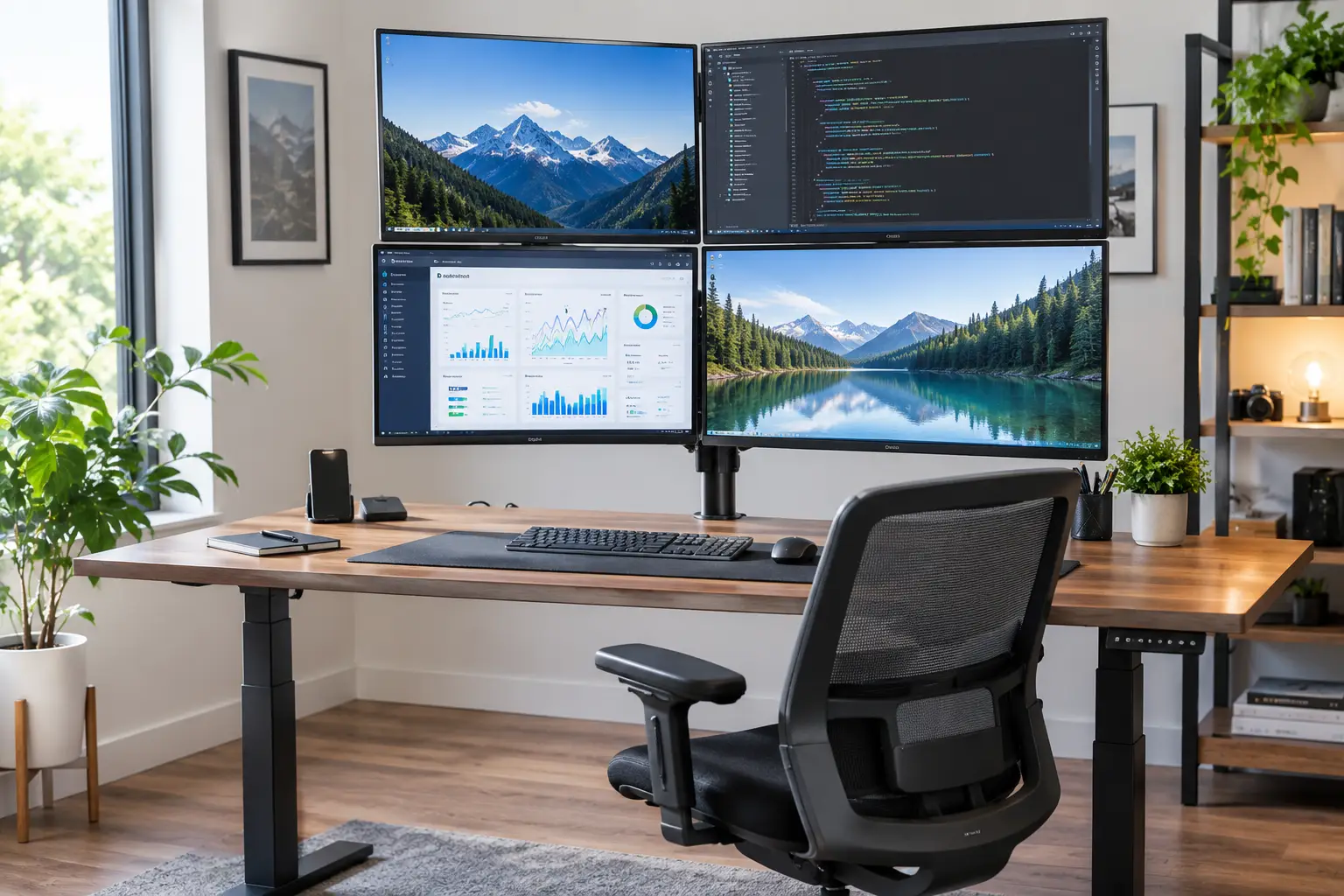
Picture this: a spreadsheet on the left, a video call in the middle, and Slack quietly blinking on the right. No frantic Alt-Tab, no lost window, no squinting at a laptop screen propped on a stack of old textbooks. That’s the everyday promise of a multi monitor workstation, and in 2026 it’s no longer reserved for stock traders and video editors.
Here’s the catch, though. Most people buy a second (or third) screen, plop it on the stand that came in the box, and call it done. A week later, their neck hurts, the two screens sit at different heights, and the desk looks like a cable spaghetti factory. The screens were never the problem — the mounting and layout were.
That’s why this guide focuses on the backbone of a multi monitor workstation: the arms and stands that hold everything in place. We compared seven real products sold on amazon.com, from a sub-$50 steel mount to a premium Ergotron arm with a 10-year warranty, using manufacturer spec sheets and the recurring themes in real customer reviews. You’ll also get a step-by-step setup guide, real-world buyer scenarios, troubleshooting fixes, and the ergonomic rules that actually matter.
One quick ground rule: the official ergonomics guidance from OSHA’s Computer Workstations eTool shapes many of the recommendations below, because a beautiful multi-screen setup that wrecks your posture isn’t a win. Let’s build one that works.
What Is a Multi Monitor Workstation?
A multi monitor workstation is a desk setup that runs two or more displays from one computer, arranged so you can view several applications at once. A good one positions every screen at a comfortable height and angle — usually with a VESA monitor arm or stand — and connects them through the computer’s video outputs or a docking station.
Quick Comparison: 7 Multi-Monitor Mounts at a Glance
| Product | Screens | Screen Size | Weight per Screen | Mechanism | Price Range | Best for |
|---|---|---|---|---|---|---|
| Ergotron LX Dual Side-by-Side Arm | 2 | Up to 27″ | 7–20 lbs | Constant Force spring | $400–$500 | Ergotron LX Dual Side-by-Side Arm: buy-it-once professionals |
| Ergotron LX Dual Stacking Arm (Tall Pole) | 2 | Up to 40″ | Up to 22 lbs | Constant Force spring | $400–$500 | Ergotron LX Dual Stacking Arm (Tall Pole): narrow desks, stacked layouts |
| HUANUO FlowLift Dual Monitor Stand | 2 | 13–32″ | 4.4–19.8 lbs | Gas spring | $50–$70 | HUANUO FlowLift Dual Monitor Stand: best overall value |
| VIVO STAND-V002 | 2 | 13–30″ | Up to 22 lbs | Manual tension joints | Under $50 | VIVO STAND-V002: set-and-forget budget builds |
| HUANUO HNDS7 | 2 | 13–35″ (listed up to 40″) | Up to 26.4 lbs | Gas spring | $100–$160 | HUANUO HNDS7: heavy and ultrawide monitors |
| VIVO STAND-V003T | 3 | Up to 30″ | Up to 17.6 lbs | Manual tension joints | $50–$80 | VIVO STAND-V003T: affordable triple monitor setup |
| VIVO STAND-V004 | 4 | 13–30″ | Up to 17.6 lbs | Manual tension joints | $60–$90 | VIVO STAND-V004: trading, monitoring, and quad layouts |
Looking at the table, the price gap is the first thing that jumps out: the two Ergotron arms cost roughly eight to ten times more than the VIVO and HUANUO budget options. What you’re paying for is not raw capacity — the VIVO STAND-V002 actually lists a higher per-screen limit than the Ergotron LX Dual Side-by-Side Arm — but smooth, one-finger repositioning and a decade-long warranty. If you rarely move your screens, the budget tier delivers most of the benefit for a fraction of the cost.
💬 One click helps other shoppers make an informed choice too! 😊
Top 7 Multi Monitor Workstation Mounts: Expert Analysis
1. Ergotron LX Dual Side-by-Side Arm — the long-haul gold standard
If you want a multi monitor workstation you’ll still be using in 2036, this is the arm most review roundups measure everything else against. The Ergotron LX Dual Side-by-Side Arm (model 45-245-224 in matte black) holds two screens up to 27 inches, each weighing 7–20 lbs, with a maximum combined load of 40 lbs.
The headline feature is Ergotron’s patented Constant Force lift, which gives you 13 inches of height adjustment per arm. In practice, that means you can nudge a monitor up or down with one hand and it simply stays put — no knobs, no levers, no slow droop over the afternoon. Each arm extends up to 25 inches, so you can pull a screen close for detailed work and push it back when you need desk space. Ergotron says the 13-inch range fits the ergonomic needs of more than nine out of ten adults, and the arms pass a 10,000-cycle motion test backed by a 10-year warranty.
Who is it for? People who sit-stand, share a desk, or reposition screens several times a day. If your monitors never move, you’re paying for motion you won’t use.
Customer reviews consistently praise the build quality and the way the arms hold position for years; the most common complaint is the price, followed by the need to fine-tune tension during setup.
Pros:
- ✅ Effortless one-hand height and depth adjustment
- ✅ 10-year warranty signals genuine long-term durability
- ✅ Polished aluminum build with under-arm cable routing
Cons:
- ❌ Priced far above most dual monitor arms
- ❌ Larger 23–27″ screens cannot be stacked vertically
Expect to pay roughly $400–$500 at the time of writing (check the current price); it’s expensive, but the per-year cost over a decade is surprisingly reasonable.
2. Ergotron LX Dual Stacking Arm (Tall Pole) — vertical layouts up to 40 inches
The Ergotron LX Dual Stacking Arm (Tall Pole) solves a problem the side-by-side model can’t: limited desk width. Its tall pole lets you stack two screens one above the other, and it handles displays up to 40 inches and up to 22 lbs each (44.1 lbs combined).
Each arm still gets the same 13-inch Constant Force lift, plus 75 degrees of tilt and full 360-degree pan and rotation. What that means in practice: you can run a 34-inch ultrawide on the bottom for your main work and a 27-inch screen above it for reference material, without the two fighting for horizontal space. It’s also modular — Ergotron sells an Arm, Extension and Collar Kit that lets the pole support a third or fourth display later.
Based on comparing the specs, this is the smarter Ergotron pick for anyone with a desk under about 48 inches wide, or for coders and writers who like a tall, vertical reading surface. One detail to check before buying: the clamp handles desks up to 2.6 inches thick, and grommet mounting tops out around 1.97 inches.
Reviews echo the praise for the LX line’s smooth motion and stability, with buyers noting that stacking requires careful neck positioning — the top screen should not sit too high.
Pros:
- ✅ Supports much larger screens, up to 40 inches
- ✅ Expandable to three or four displays with add-ons
- ✅ Saves horizontal desk space on narrow surfaces
Cons:
- ❌ Top screen can sit above comfortable eye level
- ❌ Thinner maximum clamp thickness than budget rivals
It typically lands in the $400–$500 range — premium money, but uniquely flexible for stacked and oversized setups.
3. HUANUO FlowLift Dual Monitor Stand — the best value gas spring arm
If the Ergotron price makes you wince, the HUANUO FlowLift Dual Monitor Stand is the arm many reviewers recommend instead. It holds two 13–32 inch monitors weighing 4.4–19.8 lbs each, using independent gas springs on each arm.
The gas springs are the point here. Unlike fixed-tension budget mounts, you can lift, lower, and swing each screen freely once the spring tension is set. HUANUO says its gas springs pass 20,000 motion cycles, and the arms offer full tilt, swivel, and 360-degree rotation, so either screen can flip to portrait mode for code or long documents. It ships with both a C-clamp and a grommet base.
On paper, this means you get roughly 80% of the Ergotron experience for a fraction of the price. The trade-off is refinement: gas springs need correct tension for your specific monitor weight, and adjusting them takes a few minutes with an Allen key. Buyers running two 24- to 27-inch screens are the sweet spot.
Customer reviews frequently describe it as a “set-and-forget” upgrade that holds position well once tension is dialed in; the recurring complaint is that very light monitors may drift upward until the tension is lowered.
Pros:
- ✅ Smooth gas spring movement on each arm
- ✅ Strong value compared with premium arms
- ✅ Portrait rotation for coding and reading
Cons:
- ❌ Tension needs manual tuning for your monitors
- ❌ Not rated for heavy ultrawide displays
At roughly $50–$70, it’s the best value-for-money pick for a typical dual monitor workstation.
4. VIVO STAND-V002 — the budget workhorse
The VIVO STAND-V002 has been an Amazon bestseller for years for one reason: it gets two screens off your desk for less than the cost of a nice lunch for two. It fits two 13–30 inch monitors up to 22 lbs each, using standard VESA 75×75 or 100×100 mounting.
There are no springs here. Instead, the arms are positioned and locked by tightening joints, and height is set by sliding the arm bracket along the center pole. The VESA heads offer +90° to -90° tilt, 180° swivel, and 360° rotation, and the heavy-duty C-clamp handles desks up to 3.25 inches thick. In everyday terms: you set it once, tighten it, and it stays — but moving a screen later means grabbing a wrench.
That makes the VIVO STAND-V002 ideal for students, first-time builders, and anyone who works in a fixed position. Note that both arms share one height bracket on the pole, so two monitors of different sizes may not align perfectly at the top edge.
Reviews consistently praise the value and solid steel build. The most common complaint, voiced by owners of heavier ultrawide screens, is that the tilt joint can slowly let the screen nod forward, even below the rated weight.
Pros:
- ✅ Extremely affordable entry into multi-monitor setups
- ✅ Fits thick desks up to 3.25 inches
- ✅ Full tilt and portrait rotation range
Cons:
- ❌ No springs — adjustments require tools
- ❌ Tilt joint struggles with heavy ultrawides
Usually under $50, it’s hard to beat on pure value for lightweight 24–27 inch screens.
5. HUANUO HNDS7 — built for heavier and ultrawide screens
Most dual monitor arms top out around 20 lbs per screen. The HUANUO HNDS7 pushes that to 26.4 lbs per arm, which is exactly what matters if you run a curved 34-inch ultrawide alongside a 27-inch 4K panel.
HUANUO’s own spec sheet lists 13–35 inch compatibility (some Amazon listings say up to 40 inches), a maximum arm height of 21.65 inches, and reach of 25.59 inches. Tilt runs from +85° to -30°, with ±90° swivel and full rotation. The base includes two USB ports for charging small devices, in-arm cable routing, and a clamp or grommet that fits desks from 0.39 to 3.54 inches thick. HUANUO backs it with a 5-year limited warranty.
What most buyers overlook: that extra reach is a blessing on deep desks and a liability on shallow ones. Reviewers with stacked or vertical layouts note the arms can protrude past the desk edge if your desk is less than about 30 inches deep. For heavy curved screens, though, the extra spring capacity is the difference between a stable display and one that sags.
Customer reviews repeatedly highlight that it’s one of the few dual arms rated above 20 lbs, and owners of 34-inch curved monitors report it holds them steadily.
Pros:
- ✅ 26.4 lbs per arm handles ultrawides
- ✅ Long reach suits deep desks
- ✅ Built-in USB charging ports in the base
Cons:
- ❌ Overkill for light 24-inch monitors
- ❌ Can overhang shallow desks in vertical setups
Commonly found in the $100–$160 range on Amazon (prices vary by seller), it’s the value pick for heavy displays.
6. VIVO STAND-V003T — the affordable triple monitor setup
Three screens change the geometry of your desk, and the VIVO STAND-V003T is one of the most accessible ways to make it work. This heavy-duty triple mount holds three screens up to 30 inches, with VIVO’s listing rating it at 17.6 lbs per screen.
Like other VIVO steel mounts, it uses lockable joints rather than springs, with a center pole for height adjustment and VESA 75×75/100×100 plates. What that means in practice: the center screen goes directly in front of you, and the two side screens angle inward so every display sits at a similar viewing distance — the classic “wrap-around” cockpit for traders, analysts, and sim racers. Note that VIVO sells several close variants (V003, V003O, V003T, and white versions) with different tilt ranges and weight limits, so double-check the exact model number before ordering.
Honest analysis: three 27-inch screens span roughly six feet, so this only makes sense on a wide desk. With three 24-inch screens, it fits most 60-inch desks comfortably.
We couldn’t find a large body of review commentary specific to this exact variant, so weigh it on the specs. Across VIVO’s triple-mount line, reviews generally praise value and sturdiness while warning that installation is easier with two people.
Pros:
- ✅ Holds three screens on a single clamp
- ✅ Very low cost per screen mounted
- ✅ Pole height adjustment aligns all displays
Cons:
- ❌ Limited tilt compared with gas spring arms
- ❌ Easy to confuse with similar VIVO variants
Usually around $50–$80, it’s the cheapest credible route to a triple monitor workstation.
7. VIVO STAND-V004 — four screens on one pole
For day traders, security monitoring, or dashboard-heavy work, the VIVO STAND-V004 quad mount holds four 13–30 inch screens at up to 17.6 lbs each, typically in a two-over-two grid.
It uses a heavy-duty C-clamp or grommet for desks up to 3.25 inches thick, and each VESA plate can shift up or down by about half an inch. That small adjustment matters more than it sounds: monitors from different brands rarely place their VESA holes in the same spot, and this is how you get the bezels to line up into one clean wall of screens. Each joint can be tightened to control how fluid or fixed the arms feel.
The honest catch is physics. Four screens on one pole put a lot of leverage on your desk edge, so a solid, thick desktop matters. Reviewers note that larger screens reduce how far you can tilt and rotate each display, and several recommend 23- or 24-inch monitors as the comfortable size for this layout.
Customer feedback commonly describes it as sturdy once bolted down, with the main warnings being that installation is a two-person job and that 27-inch screens get crowded.
Pros:
- ✅ Mounts four screens from one footprint
- ✅ Per-plate height tweak aligns mismatched monitors
- ✅ Grommet option for extra stability
Cons:
- ❌ Tilt and rotation shrink with larger screens
- ❌ Demands a thick, solid desktop
Usually priced around $60–$90, it delivers a quad setup at remarkable value.
Side-by-Side Spec Comparison
| Product | Height Adjustment | Max Desk Thickness | Warranty | Best for |
|---|---|---|---|---|
| Ergotron LX Dual Side-by-Side Arm | 13″ per arm, spring-assisted | Clamp or bolt-through | 10 years | Ergotron LX Dual Side-by-Side Arm: frequent repositioning |
| Ergotron LX Dual Stacking Arm (Tall Pole) | 13″ per arm, spring-assisted | 2.6″ clamp | 10 years | Ergotron LX Dual Stacking Arm (Tall Pole): stacked 40″ screens |
| HUANUO FlowLift Dual Monitor Stand | Gas spring, free movement | C-clamp or grommet | Check listing | HUANUO FlowLift Dual Monitor Stand: value-focused movers |
| VIVO STAND-V002 | Manual, along pole | 3.25″ | 3 years (per reseller listing) | VIVO STAND-V002: fixed budget setups |
| HUANUO HNDS7 | Gas spring, to 21.65″ | 3.54″ | 5 years | HUANUO HNDS7: heavy ultrawides |
| VIVO STAND-V003T | Manual, along pole | 3.25″ (typical for line) | Check listing | VIVO STAND-V003T: triple layouts |
| VIVO STAND-V004 | Manual, plus ±0.5″ per plate | 3.25″ | Check listing | VIVO STAND-V004: quad grids |
The pattern is clear: spring-assisted arms (Ergotron and HUANUO) win when your screens move, while the VIVO steel mounts win when they don’t. Desk thickness is the quiet deal-breaker — the Ergotron LX Dual Stacking Arm (Tall Pole) has the thinnest clamp limit here, so measure before you buy. Warranty length tracks closely with price, and the HUANUO HNDS7‘s five years is a notable outlier in its price tier.
✨ Don’t miss these top picks for your new workspace!
🔍 Take your multi-monitor productivity to the next level with this carefully curated lineup. Click a highlighted product name to check current pricing and availability on Amazon. These picks will help you build a cleaner, more comfortable desk you’ll actually enjoy sitting at!
How to Set Up Your Multi Monitor Workstation in One Afternoon
Unboxing a monitor arm is easy. Setting it up so it’s comfortable for eight hours a day takes a little method. Here’s a sequence that avoids the most common first-week regrets.
🛠️ Step-by-step setup
- Measure before you mount. Check desk thickness and the overhang lip at the back edge. Clamp mounts need a solid rear edge; glass desks and thin particleboard are risky.
- Confirm VESA compatibility. Look for 75×75 mm or 100×100 mm holes on each monitor’s back. Some slim monitors need an adapter bracket.
- Clamp the pole first, monitors second. Tighten the clamp, then attach the VESA plates to your screens while they lie face down on a towel.
- Set spring tension with the monitor attached. On gas spring arms like the HUANUO FlowLift Dual Monitor Stand, a screen that rises on its own needs less tension; one that sinks needs more.
- Position the primary screen first. Place it directly in front of you, at arm’s length, with the top edge at or slightly below eye level.
- Angle secondary screens inward. Curve them toward you so viewing distance stays roughly equal across all displays.
- Route cables last. Leave a little slack at each joint so cables don’t yank when arms move.
⚠️ Common mistakes in the first 30 days
- Overtightening tilt bolts until the threads strip.
- Ignoring spring tension and blaming the arm when screens drift.
- Setting every screen at the same height when one is used far more than the others.
- Forgetting to re-check clamp tightness after the first week, as hardware settles.
A ten-minute recheck at the end of your first week is the single best maintenance habit you can build.
Real-World Scenarios: Matching the Right Setup to Your Work
Specs only mean something in context. Here are three typical buyer profiles and how the products above map onto them.
👩💻 The remote software developer
Budget: around $60–$120. Use: 8–10 hours a day, two 27-inch monitors, one often rotated to portrait for code.
The HUANUO FlowLift Dual Monitor Stand fits this profile well. Portrait rotation is the killer feature for reading long files, and gas springs make it easy to swap orientation without tools. If one monitor is a heavier curved ultrawide, step up to the HUANUO HNDS7 instead, since its 26.4-lb rating leaves real headroom.
📈 The part-time day trader
Budget: under $100 for mounting. Use: market hours only, four 24-inch screens showing charts, news, and order windows.
The VIVO STAND-V004 is built for this. Trading screens rarely move once positioned, so the absence of springs isn’t a drawback, and the per-plate alignment adjustment keeps chart edges lined up across mismatched monitors. Bolt it through a grommet hole if the desk allows — it noticeably improves stability with four screens.
🧑🎨 The hybrid designer with a sit-stand desk
Budget: $400+. Use: switches between sitting and standing several times a day, color-critical 27-inch displays.
Here the Ergotron LX Dual Side-by-Side Arm earns its price. Every time you raise the desk, you’ll want to fine-tune screen height and depth, and Constant Force lift makes that a one-second nudge rather than a wrench session. Over years of daily adjustments, the 10-year warranty is the real value.
Problem → Solution: Fixing Common Multi-Monitor Headaches
Even a great multi monitor workstation develops quirks. Here are the fixes for the five problems buyers run into most often.
Problem 1: A monitor slowly sinks or rises. ✅ Solution: Spring tension doesn’t match the screen’s weight. Increase tension if it sinks, decrease if it rises. On fixed mounts like the VIVO STAND-V002, tighten the specific joint, not the whole arm.
Problem 2: The screen nods forward. ✅ Solution: The tilt joint is underpowered for the monitor’s weight, a recurring complaint with heavy ultrawides on budget mounts. Tighten the tilt bolt first; if it still droops, move to a higher-rated arm like the HUANUO HNDS7.
Problem 3: The whole setup wobbles when you type. ✅ Solution: Check clamp tightness, then check the desk itself. A thin or hollow-core desktop flexes. A steel reinforcement plate under the clamp, or grommet mounting, usually cures it.
Problem 4: Screen edges don’t line up. ✅ Solution: Different monitor brands place VESA holes differently. Use per-plate height adjustment (the VIVO STAND-V004 offers about half an inch) or independent arms like the Ergotron LX Dual Side-by-Side Arm.
Problem 5: Neck pain after long sessions. ✅ Solution: Your most-used screen is probably off-center or too high. Move it directly in front of you and drop the top edge to eye level or slightly below.
How to Choose a Multi Monitor Workstation Mount
Choosing well comes down to a handful of criteria. Work through them in order and the right product usually becomes obvious.
- Weigh your monitors without their stands. Weight rating is the most important spec. Check the manufacturer’s weight “without stand,” then pick an arm rated comfortably above it.
- Confirm VESA size. Nearly all consumer arms use 75×75 mm or 100×100 mm patterns, defined by the VESA Flat Display Mounting Interface standard. Larger patterns need a heavier-duty mount.
- Measure desk thickness and depth. Clamp ranges vary from about 2.6 inches to over 3.5 inches. Deep desks benefit from long-reach arms; shallow ones don’t.
- Decide how often you’ll move screens. Daily adjustment justifies gas or Constant Force springs. Fixed setups don’t.
- Count your screens honestly. Two, three, and four-screen mounts are different products — buying a dual mount “for now” often means buying twice.
- Plan the layout. Side-by-side suits wide desks; stacked suits narrow desks and tall reading work.
- Check the warranty. It’s the manufacturer’s own forecast of how long the springs will last.
Dual Monitor Workstation vs Triple Monitor Setup
Is a third screen worth it, or does a dual monitor workstation hit the sweet spot? It depends on how your attention is split.
🖥️🖥️ The case for two screens
A dual monitor workstation is the most practical upgrade for most people. One screen holds your main task; the other holds reference material, chat, or a video call. It fits on almost any 48-inch-plus desk, costs less, and keeps your neck rotation small. If you use one screen far more than the other, ergonomists generally recommend centering that primary screen in front of you and placing the second off to the side.
🖥️🖥️🖥️ The case for three screens
A triple monitor setup shines when you genuinely monitor three streams at once — trading, live production, security, sim racing, or data work with dashboards. The center screen becomes your primary, with the two side screens angled inward like a cockpit. The catch: the outer screens push your eyes and neck further from neutral, and OSHA’s guidance suggests keeping monitors within about 35 degrees left or right of center.
⚖️ The verdict
If you can’t name what will live on the third screen, you probably don’t need it. Start with a solid dual mount like the HUANUO FlowLift Dual Monitor Stand; if you outgrow it, the VIVO STAND-V003T is an affordable step up. One middle path worth considering: a single ultrawide plus one secondary screen on an arm like the HUANUO HNDS7, which gives near-triple screen space with fewer bezels.
Monitor Arms vs Stock Stands and Freestanding Bases
Is a monitor arm really better than the stand that came with your screen? For a multi-screen desk, usually yes — but freestanding bases have their place.
| Feature | Monitor Arm (clamp/grommet) | Stock Monitor Stands | Freestanding Multi-Monitor Base |
|---|---|---|---|
| Desk space freed | Most | Least | Moderate |
| Height range | Wide, often 13″+ | Limited or none | Pole-based, moderate |
| Screen alignment | Excellent | Hard to match brands | Good |
| Install effort | Moderate | None | Low |
| Best for | Daily ergonomic use | Single-screen, temporary setups | Desks that can’t take a clamp |
The table shows why arms dominate serious setups: they free the most desk space and give the widest height range, which is what makes ergonomic positioning possible. Stock stands are fine for a single screen but nearly impossible to align across two brands. Freestanding bases, like VIVO’s “F” variants of its mounts, are the right answer when a desk’s frame or a glass top makes clamping unsafe.
Multi Monitor Desk Setup for Laptop Users: Docks and Connectivity
Mounting is half the battle. The other half is getting a video signal to every screen — and laptops make this trickier than desktops.
🔌 Know your laptop’s display limit
Many laptops support a limited number of external displays, regardless of how many ports they have. Some entry-level chips support only one external screen natively. Check your laptop maker’s spec page for “external displays supported” before buying monitors.
🔗 Docks, Thunderbolt, and DisplayPort MST
A Thunderbolt or USB-C docking station lets one cable carry power, data, and video to several monitors. On Windows machines, many docks use DisplayPort Multi-Stream Transport (MST) to split one connection into multiple independent displays, or to daisy-chain monitors that support it. The important caveat: macOS has historically not supported MST for extended desktops the same way Windows does, so Mac users often need a Thunderbolt dock or DisplayLink-based adapter. Check compatibility with your specific machine before buying.
💡 Practical tips
- Match refresh rate and resolution expectations to your dock’s total bandwidth.
- Use one cable type end to end where possible to reduce flaky connections.
- Route the dock behind your mount’s pole for a cleaner multi monitor desk setup.
The bottom line: buy the dock that matches your laptop’s capabilities first, then choose a mount for the number of screens it can actually drive.
Features That Actually Matter (and Ones That Don’t)
Monitor arm listings love buzzwords. Here’s how to separate genuine value from marketing gloss.
✅ Features that matter
- Weight rating per arm. This decides whether your screens stay put. Everything else is secondary.
- Spring type. Constant Force or gas springs enable tool-free movement; manual joints don’t. Choose based on how often you’ll adjust.
- Independent arms. Separate height control per screen, as on the Ergotron LX Dual Side-by-Side Arm, fixes mismatched monitor sizes.
- Clamp range and grommet option. A mount that can’t grip your desk is useless.
- Warranty length. A real proxy for spring longevity.
🤷 Features that matter less than you’d think
- USB ports in the base. Handy on the HUANUO HNDS7, but a cheap hub does the same job.
- Extreme tilt ranges. You’ll rarely tilt a screen beyond about 20 degrees in daily use.
- “Gaming” branding. It describes color schemes, not engineering.
- Maximum screen size claims. Weight limits, not diagonal inches, determine whether a large screen works. Some arms list sizes they can technically fit but can’t comfortably angle.
Spending your budget on the first list rather than the second is how you get a mount that’s still pleasant to use years from now.
Common Mistakes to Avoid When Buying a Multi-Monitor Mount
Most disappointing purchases trace back to a few avoidable errors. Here’s what to watch for.
- Buying by screen size alone. A 32-inch monitor can weigh anywhere from about 10 to over 20 lbs. Always check weight.
- Ignoring the desk. Glass, thin laminate, and desks with a rear crossbar can make clamps unsafe or impossible. Measure first.
- Choosing too few arms. If you think you’ll add a screen within a year, buying a mount with room to grow — like the expandable Ergotron LX Dual Stacking Arm (Tall Pole) — can be cheaper long-term.
- Assuming all VIVO models are the same. VIVO sells near-identical variants with different weight and tilt specs. Match the exact model number.
- Skipping the ultrawide check. Curved ultrawides are heavier and wider than they look. Budget mounts commonly struggle with them, as VIVO STAND-V002 reviews about forward tilt suggest.
- Overlooking your laptop’s display limit. Buying four monitors for a laptop that drives one external screen is an expensive surprise.
- Forgetting cable length. Arms extend, rotate, and rise — short cables get yanked loose.
Avoid these seven, and your multi monitor workstation will feel right from day one instead of after three returns.
Long-Term Cost and Maintenance
The sticker price is only part of the story. Here’s how the options compare over a realistic ownership period.
| Product | Approx. Price Range | Warranty | Approx. Cost per Warranty Year | Best for |
|---|---|---|---|---|
| Ergotron LX Dual Side-by-Side Arm | $400–$500 | 10 years | ~$40–$50 | Ergotron LX Dual Side-by-Side Arm: decade-long use |
| HUANUO HNDS7 | $100–$160 | 5 years | ~$20–$32 | HUANUO HNDS7: heavy screens on a budget |
| VIVO STAND-V002 | Under $50 | 3 years (per reseller listing) | Under ~$17 | VIVO STAND-V002: low-cost fixed setups |
Measured per warranty year, the gap between premium and budget shrinks considerably — the Ergotron LX Dual Side-by-Side Arm costs more upfront but is designed to outlast several cheaper mounts. The HUANUO HNDS7 stands out as the middle-ground value, while the VIVO STAND-V002 remains the cheapest way in if you don’t need springs.
🔧 Maintenance schedule
- Monthly: Wipe down joints and dust the screens; check that cables still have slack.
- Every 3–6 months: Re-tighten clamp bolts and VESA screws, which loosen with vibration.
- Yearly: Re-check spring tension, especially after swapping monitors.
Gas springs gradually lose a little force over many years, so expect occasional tension tweaks — that’s normal, not a defect.
Safety, Ergonomics, and Standards
A multi monitor workstation puts real weight on a desk edge and real demands on your body, so a few rules are worth respecting.
🦴 Ergonomic placement
OSHA’s workstation guidance recommends placing your main monitor directly in front of you, keeping monitors within about 35 degrees left or right, and positioning the center of the screen roughly 15 to 20 degrees below horizontal eye level. For dual setups, the practical dual-monitor ergonomic tips from EHS Today suggest arranging screens based on how you split your time: if you use both equally, center the seam between them; if one is your primary (80% or more of your time), treat it like a single-monitor workstation and set the other off to the side.
⚙️ Mechanical safety
- Never exceed the per-arm weight rating, and leave a buffer.
- Spring-loaded arms can snap upward when a monitor is removed. Lower the arm to its rest position or reduce tension before detaching a screen.
- Check desk compatibility; manufacturers commonly warn against clamping to glass or very thin surfaces.
- Freestanding bases can tip if a screen is pulled too far forward. VIVO itself warns against pulling monitors far forward or backward unless the stand is bolted down.
🔌 Electrical basics
Use a quality surge protector, avoid daisy-chaining power strips, and look for UL- or ETL-listed power accessories where applicable.
Frequently Asked Questions
❓ How many monitors can a multi monitor workstation support?
❓ What is the best monitor arm for two monitors on a budget?
❓ Can I mount a curved ultrawide on a dual monitor arm?
❓ Do monitor arms damage desks?
❓ Is a triple monitor setup worth it for working from home?
Conclusion: Build a Multi Monitor Workstation You’ll Actually Enjoy
A great multi monitor workstation isn’t about stacking as many screens as possible. It’s about putting the right number of displays exactly where your eyes and neck want them, on a mount that keeps them there without a fight.
If you want the buy-it-once option and adjust your screens constantly, the Ergotron LX Dual Side-by-Side Arm is still the benchmark, while the Ergotron LX Dual Stacking Arm (Tall Pole) handles narrow desks and big stacked screens. For most people, the HUANUO FlowLift Dual Monitor Stand is the smart value pick, and the VIVO STAND-V002 is the cheapest credible way to get two screens off your desk. Running a heavy ultrawide? The HUANUO HNDS7 has the capacity you need. And if your work truly calls for more screens, the VIVO STAND-V003T and VIVO STAND-V004 make triple and quad layouts surprisingly affordable.
Whichever you pick, follow the basics: weigh your monitors, measure your desk, center your primary screen, and recheck the hardware after the first week. Do that, and your new setup will feel less like a gadget and more like a natural extension of how you work.
🚀 Ready to upgrade your desk?
🔍 Click any highlighted product above to check current pricing and availability on Amazon, then pick the mount that fits your screens, your desk, and the way you work. Your neck — and your productivity — will thank you!
Recommended for You
- Adjustable Desk Shelf: 7 Best Smart Picks to Fix Your Setup (2026)
- Standing Desk Hardware: 7 Best Frames Worth Buying in 2026
- Desk Chair Neck Support: 7 Best Picks That Actually Work (2026)
Disclaimer: This post contains affiliate links. As an Amazon Associate, I earn from qualifying purchases made through these links, at no additional cost to you.
✨ Found this article helpful? Share it with someone who needs it! 💬🤗