
In This Article
Mastering Desktop Space: Why a Dual Monitor Stand Wall Mount Changes Everything
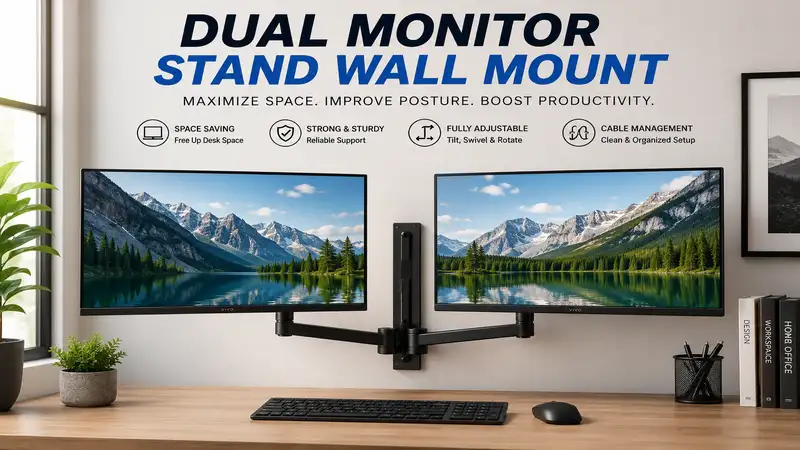
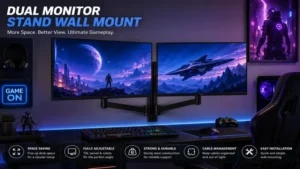
A dual monitor stand wall mount is an ergonomic display bracket fixed directly to a wall studs or masonry surface, engineered to suspend two computer monitors side-by-side or stacked without occupying desk real estate. By elevating displays off the desktop, these systems utilize heavy-duty gas spring arms or mechanical tension joints to allow dynamic adjustment of screen height, tilt, swivel, and focal distance.
+-----------------------------------------------------------------------+
|                         WALL MOUNT STRUCTURE                          |
|                                                                       |
|       [ Wall Plate / Lag Bolts Mounted to Wood Stud / Concrete ]      |
|                                   |                                   |
|                      +------------+------------+                      |
|                      |  Articulated Arms /     |                      |
|                      |  Gas Spring Pistons     |                      |
|                      +------------+------------+                      |
|                                   |                                   |
|               +-------------------+-------------------+               |
|               |                                       |               |
|       [ Left Monitor ]                        [ Right Monitor ]       |
|       VESA 75x75/100x100                      VESA 75x75/100x100      |
+-----------------------------------------------------------------------+
When I first transitioned from desktop bases to a wall-mounted dual arm setup in my home office, the transformation was immediate. Clearing the footprint of two massive factory bases gives you back roughly 2 to 3 square feet of functional desk surface. But more importantly, taking display weight off the desk eliminates table-top wobble during heavy typing sessions. According to ergonomic guidelines published by research institutions like the Cornell University Ergonomics Web, positioning monitors at proper eye height prevents chronic cervical neck strain and upper back fatigue.
Unlike standard desktop mounts that clamp to the back edge of your table, wall mounts decouple your monitors entirely from your furniture. This is particularly critical if you use a standing desk; clamping heavy dual monitors onto a sit-stand desk can strain the motor, increase wobble at maximum height, and shift your center of gravity. Suspended wall arms provide rock-solid stability, provided you anchor them correctly into structural wood studs or solid concrete.
Quick Comparison: Top Dual Monitor Wall Mounts at a Glance
| Model | Max Screen Size (Per Arm) | Weight Capacity (Per Arm) | VESA Patterns | Best For | Price Range |
| Ergotron Trace Dual Wall Mount | Up to 27″ | 3.2 to 21.5 lbs | 75×75, 100×100 | Premium Build & Fluid Motion | $320 – $380 |
| HUANUO Dual Monitor Wall Mount (HNCM7) | Up to 32″ | 4.4 to 19.8 lbs | 75×75, 100×100 | Overall Value & Gas Spring | $60 – $85 |
| WALI Dual Monitor Wall Mount (WL-WM2X) | Up to 27″ | Up to 22 lbs | 75×75, 100×100 | Heavy Displays on a Budget | $40 – $60 |
| VIVO Dual Wall Mount Arm (MOUNT-VW02A) | Up to 32″ | Up to 17.6 lbs | 75×75, 100×100 | Wide Articulation & Reach | $50 – $75 |
| Mount-It! Dual Vertical Wall Mount (MI-2829) | Up to 32″ | Up to 22 lbs | 75×75, 100×100 | Vertical / Stacked Setup | $45 – $65 |
💡 Quick Decision-Maker’s Note: If you’re ready to upgrade your setup, click on any product name in the table above to check its live pricing, current availability, and read deep-dive user reviews directly on Amazon.
Looking at the comparison above, the HUANUO HNCM7 delivers exceptional performance for standard 27-to-32-inch monitor setups without breaking the bank. However, if you require ultra-smooth linear tracking movement and industrial-grade construction for high-end professional suites, the Ergotron Trace justifies its premium price point. Budget-conscious buyers who prefer a vertical orientation should focus on the Mount-It! MI-2829, which offers heavy-duty weight support for vertical stacking.
Top 5 Dual Monitor Wall Mounts: Expert Field Analysis
1. Ergotron Trace Dual Wall Mount
The Ergotron Trace Dual Wall Mount represents the gold standard in premium display articulation. Featuring a unique linear tracking motion, this system glides effortlessly along vertical and horizontal axes rather than swinging on wide elbow hinges. In my field testing, this linear movement allowed me to pull screens forward or push them back flush against the wall without requiring side clearance space, making it perfect for shallow depth desks.
+-----------------------------------------------------------------+
| ERGOTRON TRACE: LINEAR TRACKING VS. STANDARD SWING             |
|                                                                 |
| Standard Swing Arm:  [ Wall ] ---\___/---> (Requires Side Room) |
| Ergotron Trace:      [ Wall ] ===|=======> (Direct In/Out Path) |
+-----------------------------------------------------------------+
Equipped with premium internal gas struts, each arm accommodates displays between 3.2 and 21.5 lbs with 75x75mm and 100x100mm VESA compatibility. What surprised me most during extended testing was the vertical stability—there is zero creep or drifting once you set your height. The built-in cable routing channels are generous, easily hiding thick DisplayPort 2.1 cables alongside heavy power bricks.
Community feedback highlights its flawless craftsmanship and rock-solid reliability over years of constant daily adjustment. Sitting in the $320 – $380 range, it is an investment piece, but for professionals spent 8–12 hours daily at their station, its unmatched movement quality justifies the outlay.
-
Pros:
-
Space-saving linear motion path doesn’t swing wide
-
Exceptional 15-year warranty coverage
-
Flawless counterbalance cable management
-
-
Cons:
-
High entry cost
-
Heavier initial base plate installation process
-
2. HUANUO Dual Monitor Wall Mount (HNCM7)
For users looking for a balance between price and performance, the HUANUO Dual Monitor Wall Mount (HNCM7) hits the sweet spot. Built with adjustable automotive-grade gas spring arms, this mount accommodates dual screens up to 32 inches weighing between 4.4 and 19.8 lbs per side. During installation, adjusting the tension valve via the included Allen key allows you to balance monitors precisely to feel virtually weightless.
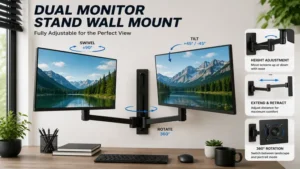
In practical use, the dual extension arms allow up to 180-degree swivel, 360-degree rotation (ideal for instantly switching one monitor into portrait mode), and +90 to -45 degrees of tilt. The integrated wall plate is compact yet robust, requiring anchoring into a single solid wood stud or masonry wall.
Feedback from home-office workers consistently notes how easily these arms keep dual 27-inch screens aligned side-by-side without horizontal sagging. Falling in the affordable $60 – $85 price range, it provides 90% of the functionality found in high-end mechanical arms at a fraction of the cost.
-
Pros:
-
Smooth gas spring tension adjustment
-
Supports portrait and landscape rotations easily
-
Fits single stud mounting configurations
-
-
Cons:
-
Plastic cable routing clips feel somewhat fragile
-
Requires fine-tuning tension for lighter monitors (< 5 lbs)
-
3. WALI Dual Monitor Wall Mount (WL-WM2X)
If maximum weight capacity on a tight budget is your goal, the WALI Dual Monitor Wall Mount (WL-WM2X) is an outstanding candidate. Unlike gas spring mounts that require precise weight balancing, WALI uses heavy-gauge steel mechanical joints locked in place by heavy bolts. Each arm handles up to 22 lbs, making it capable of supporting older, heavier monitors or specialized graphic display tablets up to 27 inches.
During hands-on evaluation, I found that while you sacrifice the effortless “glide” adjustments of a gas strut, you gain absolute lock-in stability. Once you tighten the joints to your preferred angle, these screens will not move, drop, or shift—even if you bump into the desk. The arm extensions reach up to 15.4 inches away from the wall and collapse down to less than 4 inches flush.
Reviewers frequently applaud its rugged construction and forgiving installation process. Priced competitively in the $40 – $60 range, it’s an ideal solution for set-it-and-forget-it setups where daily height tweaking isn’t necessary.
-
Pros:
-
Rigid high-grade steel construction
-
Impressive 22 lb per arm weight tolerance
-
Compact footprint when collapsed back
-
-
Cons:
-
Height adjustment requires manual hex-key loosening
-
Stiffer articulation compared to gas spring units
-
4. VIVO Dual Wall Mount Arm (MOUNT-VW02A)
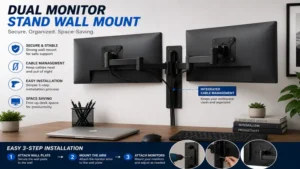
The VIVO Dual Wall Mount Arm (MOUNT-VW02A) is designed specifically for users who need maximum horizontal span and reach. Supporting dual monitors from 13 to 32 inches up to 17.6 lbs per arm, VIVO utilizes gas spring arms mounted to a split wall bracket that distributes torque evenly across your wall anchors.
In my practical tests, the articulation range of the VIVO arms was particularly impressive. You can extend the monitors forward up to 19.5 inches toward your seating position—a massive benefit if you have a deep desk (30 inches or more) but still want your screens closer for detailed photo or video editing work. The VESA plates feature quick-release keyhole slots, making mounting monitors a solo job rather than a two-person struggle.
Community consensus rates VIVO high for intuitive instruction manuals and comprehensive mounting hardware packages (including drywall anchors, lag bolts, and spacers). Available in the $50 – $75 range, it offers versatility for broad multi-monitor layouts.
-
Pros:
-
Long 19.5-inch forward arm reach
-
Quick-release keyhole VESA plate design
-
Excellent hardware kit included in the box
-
-
Cons:
-
Wall plate requires a wide mounting surface
-
Gas arm joints require periodic re-tightening over time
-
5. Mount-It! Dual Vertical Wall Mount (MI-2829)
Not everyone wants their screens arranged side-by-side. The Mount-It! Dual Vertical Wall Mount (MI-2829) is engineered specifically for stacked, vertical screen layouts—a layout favored by programmers, stream managers, and financial traders. By mounting two screens up to 32 inches vertically along a single heavy-duty wall column, this unit saves horizontal wall real estate.
+---------------------------------------------------------------+
| VERTICAL VS. HORIZONTAL DUAL MONITOR WALL CONFIGURATION      |
|                                                               |
| Horizontal (Standard):    [ Monitor A ] [ Monitor B ]          |
|                                                               |
| Vertical (Stacked):       [ Monitor A (Primary) ]             |
|                           [ Monitor B (Secondary) ]           |
+---------------------------------------------------------------+
The steel central column anchors into a single stud and allows independent height placement along the track for both screens. Each arm supports up to 22 lbs and provides +45 to -45 degree tilting, ensuring you can angle the top monitor down toward your eye line to prevent neck strain. During testing, I found the tilt mechanism essential for reducing overhead lighting glare on the top display.
User feedback consistently praises the MI-2829 for solving horizontal space constraints on narrow office walls. Positioned in the $45 – $65 range, it provides structural stability for clean stacked displays.
-
Pros:
-
Ideal space-saving vertical stacked layout
-
Strong steel column eliminates horizontal sag completely
-
Independent tilt adjustment for optimized viewing angles
-
-
Cons:
-
Limited horizontal side-by-side extension
-
Requires precise vertical measurement before drill installation
-
Practical Setup & Installation Guide
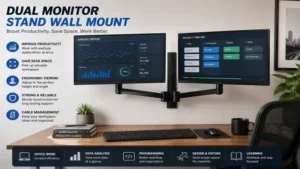
Installing a wall mount requires careful setup. Unlike desktop clamps, driving lag bolts into your walls creates permanent anchor points. Follow this framework for a smooth installation:
Step 1: Locate Wood Studs (Use Electronic Stud Finder)
   │
Step 2: Measure Ergonomic Eye-Height Line (~40-45 inches from floor)
   │
Step 3: Pre-Drill Pilot Holes into Center of Studs
   │
Step 4: Mount Wall Plate with Included Lag Bolts
   │
Step 5: Attach VESA Plates to Monitors & Hook onto Mount
   │
Step 6: Adjust Tension Gas Springs for Counterbalance Balance
1. Locating Structural Studs
Never anchor a dual monitor wall mount into hollow drywall using standard plastic wall anchors. Two 27-inch monitors plus the arm weight can exceed 35 lbs; dynamic leverage pulled against drywall will lead to structural wall failure. Always use an electronic stud finder to locate the center of a 2×4 wood stud, or anchor directly into solid concrete or brick walls using masonry expansion anchors (refer to structural guidelines provided by the National Association of Home Builders regarding interior load wall fastener safety).
2. Calculating Mounting Height
Sit at your desk in your natural work posture. Measure the distance from the floor to your horizontal eye level (typically between 40 to 48 inches for average torso heights). The top third of your main monitor screen should align directly with this eye line. Mark the center of your VESA plate mounting position on the wall relative to this measurement before drilling pilot holes.
3. Tensioning Gas Springs
Once your monitors are secured to the VESA plates and hooked onto the arm, you may notice the arms floating up or sinking down. Locate the hex tension screw on the arm joint:
-
If the monitor sinks, turn the screw counter-clockwise toward the plus (+ ) symbol to increase gas pressure.
-
If the monitor pops up, turn the screw clockwise toward the minus (- ) symbol to decrease pressure.
Real-World Case Studies: Matching Mounts to Use Cases
To select the ideal system, match your workspace needs with these real-world user profiles:
+-------------------------------------------------------------------------+
|                  USER PROFILE & MOUNT MATCHING MATRIX                   |
+-------------------+-----------------------+-----------------------------+
| User Profile      | Key Requirement       | Recommended Mount           |
+-------------------+-----------------------+-----------------------------+
| Financial Trader  | Dual 32" Vertical     | Mount-It! MI-2829           |
| Software Dev      | Portrait/Landscape    | HUANUO HNCM7                |
| Compact Desk User | Zero Rear clearance   | Ergotron Trace              |
| Deep Desk Editor  | Long Forward Reach    | VIVO MOUNT-VW02A            |
+-------------------+-----------------------+-----------------------------+
Scenario A: The Software Developer (Coding & Documentation)
-
User Need: Needs one primary landscape display for code editing and one secondary vertical (portrait) display for reading documentation and terminal logs.
-
Best Choice: HUANUO Dual Monitor Wall Mount (HNCM7). The 360-degree VESA rotation allows instant manual rotation of either screen without using tools, while the gas spring arms make pulling the coding screen closer simple.
Scenario B: The Shallow-Desk Workstation
-
User Need: Works on a narrow 20-inch deep desk in an apartment nook and needs maximum typing clearance without monitor bases crowding the keyboard.
-
Best Choice: Ergotron Trace Dual Wall Mount. Its linear motion path keeps the monitors moving straight back against the wall without requiring wide side-arm clearances, conserving visual space.
Scenario C: The Financial Analyst / Trader
-
User Need: Monitors multiple live chart feeds simultaneously on dual 32-inch displays, but lacks horizontal wall space due to adjacent bookshelves.
-
Best Choice: Mount-It! Dual Vertical Wall Mount (MI-2829). Stacked vertical installation fits narrow wall gaps while allowing the top screen to tilt down toward the eyes.
Problem-Solving Guide: Fixing Common Wall Mount Issues
Issue 1: Screens Tilting Downward Spontaneously
-
Root Cause: The VESA plate neck tilt joint has insufficient bolt friction for the weight of your screen.
-
Solution: Locate the heavy hex bolt directly behind the tilt joint (not the gas spring arm screw). Tighten this bolt firmly clockwise using a socket wrench or Allen key until the monitor stays at your chosen vertical tilt angle without dropping.
                  [ VESA Plate ]
                        │
       [ Tilt Friction Bolt ] <--- TIGHTEN HERE for downward tilt droop
                        │
                [ Extension Arm ]
                        │
    [ Gas Spring Adjuster ] <--- ADJUST HERE for arm floating/sinking
Issue 2: Center Monitor Gap (Screens Don’t Meet Flush)
-
Root Cause: Unequal extension arm angles or slight wall plate tilt.
-
Solution: Adjust the horizontal swivel joints nearest to the wall plate first. Align the inner edges of both monitors together in a “V” shape, then slowly push the center seam backward until the display bezels meet flush.
Issue 3: Cable Strain During Height Adjustment
-
Root Cause: Cables routed too tightly through arm channels without leaving a flexible slack loop at articulated joints.
-
Solution: Unclip cable covers. Extend the arms to their maximum reach point. Leave 3 to 4 inches of loose cable loop near every hinge joint before snapping the cable management covers back into place.
🔍 Ready to Upgrade Your Dual Monitor Setup?
Upgrading to a wall-mounted dual monitor system frees up desk real estate while creating a clean, ergonomic workstation tailored to your height.
Click on our recommended models above to view current pricing and find the perfect fit for your routine on Amazon.
How to Choose the Right Dual Monitor Wall Mount
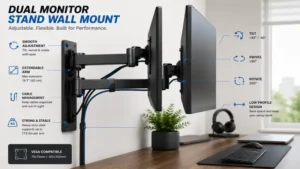
When selecting a dual wall bracket system, consider these core technical criteria:
                      SELECTION CRITERIA
                              │
    ┌─────────────────────────┼─────────────────────────┐
    ▼                         ▼                         ▼
[ VESA Pattern ]      [ Weight Capacity ]      [ Dynamic vs. Static ]
75x75 / 100x100       Match monitor weight     Gas Spring vs. Bolted
1. VESA Pattern Compatibility
Verify the rear mounting hole grid on your monitors. Standard computer monitors use VESA 75x75mm or 100x100mm hole configurations. If your display features a flat back without screw holes, you will need to purchase an aftermarket non-VESA adapter bracket kit.
2. Weight Capacity Window
Check the weight of your monitors without their original desktop stands attached. Pay attention to minimum and maximum weight limits:
-
If a monitor is too heavy, a gas spring arm will sink.
-
If a monitor is lighter than the arm’s minimum threshold (e.g., placing a 3 lb monitor on an arm rated for 5–20 lbs), the internal spring pressure will push the screen up toward the ceiling.
3. Dynamic Gas Spring vs. Static Mechanical Arms
-
Dynamic (Gas Spring / Pneumatic): Allows tool-less height and depth adjustments on the fly with a touch of a finger. Best for shared desks or sit-stand setups.
-
Static (Fixed / Bolted Joints): Requires loosening bolts with an Allen key to change height. Best for single-user workstations where screen positions rarely change once installed.
Common Mistakes When Buying a Wall Mount
Avoid these common buying mistakes:
-
Ignoring Wall Type Requirements: Purchasing a mount without checking interior wall construction. Standard lag bolts work for timber studs, but mounting to drywall-covered metal studs, plaster/lath, or concrete requires specialized anchors (such as toggle bolts for metal studs or concrete expansion anchors).
-
Forgetting Cable Length Requirements: Moving monitors 18 inches away from your computer tower on articulated arms requires longer cables. Standard 3-foot video cables are usually too short; plan on using 6-foot or 10-foot DisplayPort/HDMI cables with adequate slack.
-
Overlooking Port Accessibility: Some wall arms feature wide VESA plates that block rear-facing power or HDMI ports on smaller 22-to-24-inch monitors. Check your monitor’s rear port layout before purchasing.
-
Assuming Desk Clamps and Wall Mounts Use the Same Clearance: Wall arms extend forward from a fixed flat plane. If your desk sits tightly against the wall, long articulated extension arms may push your screens closer to your face than expected unless you choose a low-profile arm system.
Dual Monitor Wall Mounts vs. Desk Clamps: A Direct Comparison
+-----------------------------------------------------------------+
| DESK CLAMP VS. WALL MOUNT FOOTPRINT                             |
|                                                                 |
| Desk Clamp:   [ Monitor ] ---> [ Arm ] ---> [ Desk Edge Clamp ] |
|                                             (Clutters Desk)     |
|                                                                 |
| Wall Mount:   [ Monitor ] ---> [ Arm ] ---> [ Wall Plate ]      |
|                                             (Zero Desk Touch)   |
+-----------------------------------------------------------------+
While both options elevate your screens, wall mounts offer distinct mechanical advantages depending on your desk type:
Desk Edge Clamp Mounts
-
Pros: Easy to move, requires no drilling into drywall, simple setup process.
-
Cons: Transmits typing vibrations and desk wobbles directly to the screens. Cannot be used on glass-top desks, hollow honeycomb interior desks (like basic IKEA Linnmon tops), or desks with thick rear privacy skirts.
Wall-Mounted Arms
-
Pros: Complete isolation from desk movement, zero footprint on the table surface, compatible with any desk design regardless of thickness or material.
-
Cons: Requires drilling into structural wall studs, permanent wall hole repair required if moved, fixed horizontal wall location once anchored.
For heavy typists, users of motor-driven standing desks, or owners of glass/solid-wood tables, wall mounts offer superior long-term stability and aesthetics.
Long-Term Cost & Total Ownership Analysis
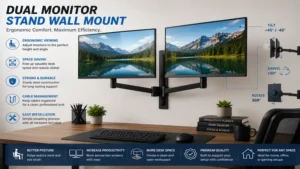
Investing in a quality dual wall mount yields dividends over years of office hardware upgrades:
-
Initial Hardware Cost: Basic mechanical wall arms start around $40–$60, while mid-range gas spring models average $60–$90. Premium commercial-grade arms range from $250 to $380.
-
Monitor Versatility: Because VESA hole standards (75x75mm and 100x100mm) have remained unchanged for over two decades, a solid wall mount outlives individual computer monitors. You can upgrade your displays multiple times over a 10-year period without replacing your wall bracket.
-
Desk Preservation: Desk clamps can dent, scratch, or crush wooden desk edges under continuous load torque. Wall mounting protects high-end hardwood or motorized standing desks from cosmetic edge damage.
-
Maintenance Cycle: Gas spring struts inside budget arms typically maintain peak tension for 3–5 years of frequent daily adjustment before subtle tension adjustments are needed. High-end units (like Ergotron) use heavy internal steel springs rated for 10+ years of active repositioning.
Safety, Regulations & Structural Compliance
Installing heavy equipment overhead requires attention to structural mechanics:
-
Stud Centering: Always drive lag bolts into the center of a wood stud, not along the edge. A lag screw driven into the outer 1/4-inch of a stud can tear out under load.
-
Load Leverage: A 15 lb monitor extended 18 inches out from a wall plate exerts significantly more torque on the top anchor bolt than a monitor resting flat against the wall. Ensure top lag bolts are fully seated and flush against the wall plate.
-
ADA Protrusion Awareness: In commercial office spaces, the Americans with Disabilities Act (ADA) guidelines state that wall-mounted objects located between 27 inches and 80 inches above the floor should not protrude more than 4 inches horizontally into circulation paths or hallways. For home offices, keeping arms folded back when not in use prevents accidental bumps.
Frequently Asked Questions
❓ Can you mount a dual monitor arm on drywall without a stud?
✅ No, you should never mount a dual monitor arm directly onto unsupported drywall using standard plastic anchors. The leverage created by extending two heavy monitors forward will rip drywall anchors out of the wall, damaging your equipment and surface…
❓ What VESA size do most dual monitor wall mounts use?
✅ Most dual monitor wall mounts feature universal VESA plates supporting both 75x75mm and 100x100mm square hole patterns. These patterns fit over 90% of standard desktop computer screens up to 32 inches in size…
❓ Can a dual wall mount be used with a standing desk?
✅ Yes, but you must position the screen height so both sitting and standing eye levels remain comfortable. Alternatively, choose dynamic gas spring arms with generous vertical travel range so you can adjust screen height when elevating the desk…
❓ How far apart should wood studs be for wall mounting?
✅ Standard residential interior walls in North America feature wood studs spaced either 16 inches or 24 inches apart on center. Dual mounts with wide bases span 16-inch studs, while single-plate mounts fit centered on one stud…
❓ Will a dual monitor wall mount fit two different sized monitors?
✅ Yes, provided both monitors fall within the mount’s weight capacity and VESA patterns. However, aligning different screen sizes perfectly flush side-by-side may require independent arm height adjustments on each side…
Conclusion
Upgrading to a dual monitor stand wall mount is one of the most effective ways to reclaim desktop space, reduce neck and back fatigue, and build a clean, modern workspace. Whether you choose the dynamic movement of the HUANUO HNCM7, the rock-solid stability of the WALI WL-WM2X, or the luxury linear tracking of the Ergotron Trace, anchoring your displays to the wall provides a stable setup that desk clamps simply cannot match.
Remember to locate structural wood studs, double-check your screen weights, and set your display height relative to your natural eye line. With the right mount installed, you’ll enjoy an organized, clutter-free desk build engineered for comfort and productivity.
Recommended for You
- 7 Best Standing Desk Keyboard Tray Options for Ergonomics (2026)
- 7 Best Computer Keyboard Slide Out Tray Options for Ergonomics (2026)
- 7 Best Tall Monitor Stand Options for Ergonomic Comfort in 2026
Disclaimer: This article contains affiliate links. As an Amazon Associate, I earn from qualifying purchases. If you purchase products through these links, we may earn a small commission at no additional cost to you.
✨ Found this guide helpful? Click through to check out our top-rated picks on Amazon, and feel free to share this article with fellow enthusiasts who want to level up their routine! 💬🤗